Showing posts with label Google Data API. Show all posts

Monday, May 14, 2012

How to upload image in Picasa Web Album with Google Data API?

This post is next in series of our exploration of Google Data API library. We have learnt what Google Data API is and what is needed to get started with it in first part. In second part we learn how to read Album titles from Picasa Web with Google Data API. In third part of the series we learn to read interesting attributes of Albums such as number of photo stored in each web album, author of the each of the album and data size of each album. In fourth part we learnt how to create a new Picasa web album through Google Data API.

In this post we will use Googe Data API i.e. GData to upload an image to our newly created web album thorugh our .NET client interface

To upload an Image to Picasa web album, we need Album ID. To get the album ID of our newly created web album, all we need is to go to our Picasa web account and open the newly created Album. Remember we created a new Album “Google is the Best” in our last post. I open the web Album. Since it has no images so the album was blank. The status bar of the chrome browser shows absolute path of the web album URL when you hover your mouse over RSS link. The path is in form https://picasaweb.google.com/data/feed/base/user//albumid//XXX

The albumid part of the URL is followed by album ID of the web album we are exploring.

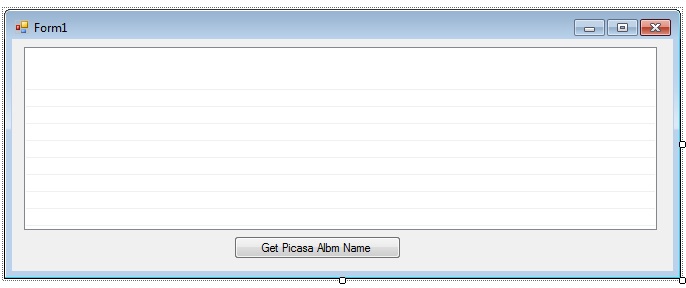
In our .NET interface, I have added a new button “Upload Image”. After clicking on this button, the images will be uploaded to our Picasa web album.

I have following image in my C:\Temp folder which I will be uploading to “Google is the Best” Picasa web album, which we created in our last post.

The .NET code snippet on this button is following. Please remember the code is purely for demonstration purpose; the error handling or coding best practises are not shown here.

private void button4_Click(object sender, EventArgs e)
{
PicasaService myPicasa = new PicasaService("Vikash-Test-Picasa");
//Passing GMail credentials(EmailID and Password)
myPicasa.setUserCredentials("abc@gmail.com", "abc");

//User ID and AlbumID has been used to create new URL
Uri newURI=new Uri(PicasaQuery.CreatePicasaUri("abc","5737335314773942337"));

//Image path which we are uploading
System.IO.FileInfo newFile=new System.IO.FileInfo("C:\\006. Temp\\PicasaTest.jpg");
System.IO.FileStream neFStream=newFile.OpenRead();
PicasaEntry newEntry=(PicasaEntry) myPicasa.Insert(newURI,neFStream,"Image/jpeg","Test");
neFStream.Close();
System.Windows.Forms.MessageBox.Show("Image has been uploaded");
}

After running the form I clicked on upload image button and the code run successfully and shows message "Image has been uploaded”"

The next thing I did was click on button “Get Picasa Web Album Name” button and it fetches all the album name, number of images in each web album etc. The newly created web album “Google is the Best” is now showing one image into it.

I log into my Picasa web account and sure enough the image was right up there.

With this we have completed our objective to upload an image to Picasa web album through our .NET client interface.

Thanks for reading till this point.

If you want to explore more with the Source code of this post; please visit Download Zone.
Tuesday, May 1, 2012

How to use Picasa Web Album with Google Data API – Part 3?

This post is in continuation to my earlier post How to use Picasa Web Album with Google Data API. We learn what Google Data API is and what is needed to get started with it in first part. In second part we learn how to read Album titles from Picasa Web with Google Data API

In this post we will use Googe Data API i.e. GData to read some more attributes of Picasa Web Albums. We will enquiry how many photos are stored in each of the Web Album, who is the author of album and what is the data size for each of the album.

For a change I converted my listbox to list view as I want to display information in a tabular format.

The .NET code snippet are following to read the Number of photos stored in each of the album and data size of each of the album. The Data size are in Bytes. So if you want to convert this to MB, you can do so.

private void button1_Click(object sender, EventArgs e)
     {
         listView1.Columns.Add("Album_Title");
         listView1.Columns.Add("`NoOfPhoto");
         listView1.Columns.Add("`Author");
         listView1.Columns.Add("`Data_Size");

         PicasaService myPicasa = new PicasaService("Vikash-Test-Picasa");
         myPicasa.setUserCredentials("abc@gmail.com", "abc");
        AlbumQuery myAlbumQuery = new AlbumQuery(PicasaQuery.CreatePicasaUri("abc"));
         PicasaFeed myPicasaFeed=myPicasa.Query(myAlbumQuery);
         foreach (PicasaEntry p in myPicasaFeed.Entries)
         {
             AlbumAccessor myAlbum = new AlbumAccessor(p);
             listView1.Items.Add((new ListViewItem(new string[] { myAlbum.AlbumTitle.ToString(), myAlbum.NumPhotos.ToString(), myAlbum.AlbumAuthor.ToString(), myAlbum.BytesUsed.ToString() })));

        }
         }

The NumPhotos, AlbumAuthor and BytesUsed property of AlbumAccessor class returns the number of photos, Album author and Album data size. After running the code in Ms-Visual Studio 2010 my output looks like this. I got number of photos, author and the album data size for each of the album

Also, I discovered a very fine pice of .NET samples which google has provided us with the client library. The sample is rich and contain examples of reading, writing or modifying information from various Google services.

Thanks for reading till this point.

If you want to explore more with the Source code of this post; please visit Download Zone.

How to get Started with Google Data API aka GData?

When you have to search something online, many of us move to the search giant Google. This is because we all consider Google as the master of search engine. In last one decade, Google has evolved itself from a web search engine to a Giant player in Web space.

Today, if we just list down what all services Google has given to us; the list is impressive. We are using many services which Google has given to the community. You are reading this text on a Google provided service i.e. Google Blogspot for example.

The list of Google services includes Gmail, Google Maps, Google Calendar, Google Docs, Picasa Web, Google Project, Google Translator, YouTube, Orkut, Google Instant, Google+ and many more. The latest edition in this list is Google Drive.

To use most of the Google services you need to have a Google account. Google Data API is a mechanism provided by Google to read, write or modify information from Google services. It acts as an interface between client programs and Google services. So in case you need to use information from Google services you go log into the Google account and use the Google service. In case you want to develop your own program (windows based or web based or mobile based) and pull information from any of the Google services; Google Data API is there to help you. You may develop a financial portfolio and want to pull latest stock prices, mutual fund prices etc through Google Finance. You may want to upload or download pictures to your Google Picasa Web Album through your own windows based or mobile bases application. For all this external access to Google services you can use Google Data API. The short abbreviation for Google Data API is GData.

To use Google Data API you need to have following:

#1. You should have a Google account with Google.

#2. You should download and store Google Data API library. Google Data API library comes in different flavor. If you come from .NET background you can go to http://code.google.com/p/google-gdata/downloads/list and download Google Data API setup.

Once you have successfully downloaded the Setup you can add reference of Google Data API in your client program. I am using Ms-Visual Studio 2010 and I can see my references right up there.

If you come from Java, JavaScript, PHP, Python or C background you can go to https://developers.google.com/gdata/docs/client-libraries and download the Google Data API library

Once you are done with the two prerequisite you are all set to explore Google Data API aka GData.

Thanks for reading till this point.

Popular Posts

Real Time Web Analytics