Showing posts with label Good Data API with Picasa. Show all posts

Thursday, May 17, 2012

How to pull photo list from Picasa web Album with Google Data API?

This post is next in series of our exploration of Google Data API library. We have learnt how to use Google Data API to externally access the Picasa Web Album.

In this post we will learn how we can pull photo list from Picasa Web Album. We will pull the image name, image summary, image published date and last updated date of each of the images stored in a particular Picasa web album.

To start with I have uploaded following five test images in our newly created Picasa web Album “Google is the Best”. We will pull the image list from this web album.

To pull images from Picasa Web Album; the very first thing you need is AlbumID. You can navigate to the Picasa web account and copy the link address of RSS link. The link address has albumID of the web album in following format:

https://picasaweb.google.com/data/feed/base/user/[Numeric userID]/albumid/[Numeric AlbumID]?alt=rss&kind=photo&hl=en_US

You can copy the album id as this you need to use in your code snippet.

I created following .NET interface in C#. The form has a list view and a button. The list view will show the image name, image summary etc details after clicking on “Get Photo List” button.

The.NET code snippet to pull the image list is following:

private void button1_Click(object sender, EventArgs e)
{
//Add four columns in the listview
 listView1.Columns.Add("Photo Title");
 listView1.Columns.Add("Photo Summary");
 listView1.Columns.Add("Published Date");
 listView1.Columns.Add("Last Updated");

//Create Picasa Service
 PicasaService myPicasa = new PicasaService("Vikash-Test-Picasa");

//Pass on user credentials (userID and password) 
 myPicasa.setUserCredentials("abc@gmail.com", "abcpassword");

//create photoqueyr by passing userid and albumid
 PhotoQuery myPhotoQuery = new PhotoQuery(PicasaQuery.CreatePicasaUri("abc", "5737335314773942337"));

 PicasaFeed myPicasaFeed = myPicasa.Query(myPhotoQuery);
 foreach (PicasaEntry p in myPicasaFeed.Entries) 
 {
  listView1.Items.Add(new ListViewItem(new string[] { p.Title.Text, p.Summary.Text, p.Published.ToShortDateString(), p.Updated.Date.ToShortDateString() }));
 }
 }

We have created an instance of a photoquery and passed the userid and AlbumID as we need to tell which album photos we want to pull. The photoquery is passed to PicasaFeed which in turn connect with the Google Picasa Feed and pull the desired information.

After running the form I clicked on “Get Photo List” button. The code runs successfully and pulled the photo list, photo summary, published date and last updated date for each of the image stored in Picasa web album.

So our objective to pull photo list from Picasa Web albums have been achived.

Thanks for reading till this point.

If you want to explore more with the Source code of this post; please visit Download Zone.

Monday, May 7, 2012

How to create new Picasa Web Album with Google Data API – Part 4?

This post is in continuation to my earlier post How to use Picasa Web Album with Google Data API – Part 3. Till this point we learn what Google Data API is and what is needed to get started with it in first part. In second part we learn how to read Album titles from Picasa Web with Google Data API. In third part of the series we learn to read interesting attributes of Albums such as number of photo stored in each web album, author of the each of the album and data size of each album.

In this post we will use Googe Data API i.e. GData to create a new web album thorugh our .NET client interface. To continue our example, I have added one label, one text and one button control to create a new web album to our .NET client form which we are using in this series.

This time in our .NET code snippet we are referencing Google.Picasa namespce. We are creating the instance of Album class. We are setting the title of the Album to the value we entered in our text box. We are setting the summary as well. You can create a separate textbox to the form interface to get the summary value.

    private void button2_Click(object sender, EventArgs e)
    {
         PicasaService myPicasa = new PicasaService("Vikash-Test-Picasa");
         myPicasa.setUserCredentials("abc@gmail.com", "abc");

        AlbumQuery myAlbumQuery = new AlbumQuery(PicasaQuery.CreatePicasaUri("abc"));
         PicasaFeed myPicasaFeed=myPicasa.Query(myAlbumQuery);

         Album newAlbum = new Album();
         newAlbum.Title=textBox1.Text.ToString();
         newAlbum.Summary="This Album has been created through .NET ";

         PicasaEntry newEntry = (PicasaEntry) myPicasa.Insert(myPicasaFeed, newAlbum.PicasaEntry);

         System.Windows.Forms.MessageBox.Show("Your New Album has been created");
}

After setting up the code, I connected to the internet and run the form. I entered the value Google is the best as new Album title. After clicking on Create button; I got a message stating that the New Album has been created.

I went to my Google Picasa web account and sure enough the new web album was there to see.

I clicked on Get Picasa Albm Name button and sure enough the new album title and its details were pulled. Currently there is no image in the new album so the number of photos are showing 0.

The objective for this post has been achived. The next target is to upload some images from our .NET interface to the new Web Album we have created in this post.

Thanks for reading till this point.

If you want to explore more with the Source code of this post; please visit Download Zone.

Tuesday, May 1, 2012

How to use Picasa Web Album with Google Data API – Part 3?

This post is in continuation to my earlier post How to use Picasa Web Album with Google Data API. We learn what Google Data API is and what is needed to get started with it in first part. In second part we learn how to read Album titles from Picasa Web with Google Data API

In this post we will use Googe Data API i.e. GData to read some more attributes of Picasa Web Albums. We will enquiry how many photos are stored in each of the Web Album, who is the author of album and what is the data size for each of the album.

For a change I converted my listbox to list view as I want to display information in a tabular format.

The .NET code snippet are following to read the Number of photos stored in each of the album and data size of each of the album. The Data size are in Bytes. So if you want to convert this to MB, you can do so.

private void button1_Click(object sender, EventArgs e)
     {
         listView1.Columns.Add("Album_Title");
         listView1.Columns.Add("`NoOfPhoto");
         listView1.Columns.Add("`Author");
         listView1.Columns.Add("`Data_Size");

         PicasaService myPicasa = new PicasaService("Vikash-Test-Picasa");
         myPicasa.setUserCredentials("abc@gmail.com", "abc");
        AlbumQuery myAlbumQuery = new AlbumQuery(PicasaQuery.CreatePicasaUri("abc"));
         PicasaFeed myPicasaFeed=myPicasa.Query(myAlbumQuery);
         foreach (PicasaEntry p in myPicasaFeed.Entries)
         {
             AlbumAccessor myAlbum = new AlbumAccessor(p);
             listView1.Items.Add((new ListViewItem(new string[] { myAlbum.AlbumTitle.ToString(), myAlbum.NumPhotos.ToString(), myAlbum.AlbumAuthor.ToString(), myAlbum.BytesUsed.ToString() })));

        }
         }

The NumPhotos, AlbumAuthor and BytesUsed property of AlbumAccessor class returns the number of photos, Album author and Album data size. After running the code in Ms-Visual Studio 2010 my output looks like this. I got number of photos, author and the album data size for each of the album

Also, I discovered a very fine pice of .NET samples which google has provided us with the client library. The sample is rich and contain examples of reading, writing or modifying information from various Google services.

Thanks for reading till this point.

If you want to explore more with the Source code of this post; please visit Download Zone.

How to use Picasa Web Album with Google Data API?

This post is in continuation to my earlier post How to get Started with Google Data API aka GData. We learn what Google Data API is and what is needed to get started with it.

In this post we will use Googe Data API i.e. GData to read information from one of popular Google service – Google Picasa Web. Picasa provides photo sharing services to it users where you can upload and share your images with the world.

First let us see what we want to read from Google Picasa web service. The below screen shot belongs to my Picasa account. I have total 6 web Albums in my Picaca account. The Goal is to read the Album titles using Google Data API. I came from .NET bacKground so I selected Ms Visual Studio 2010 and C#. I downloaded the .NET library offered by Good Data API and run the setup in my machine. This went fine except I have to download it twice as my connection broke out in between.

I fired up my Ms-Visual Studio 2010 and selected a Windows Form based Project. I added the reference of Google Data API. I am using Windows 7 in my case so my Google Data API was installed in C:\Program Files (x86)\Google\Google Data API SDK\Redist folder. After adding the reference; all Google Data API library was shown in my solution explorer

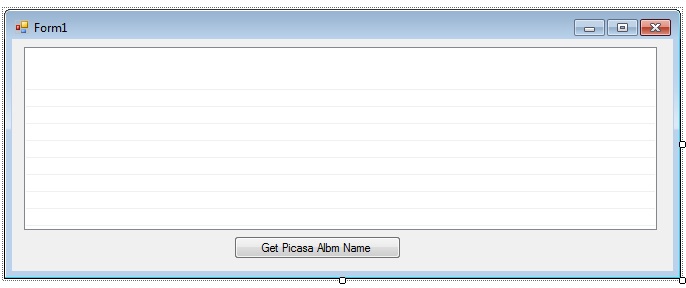
I designed a small form with one list box and and one button. The list box is where I want to display the Web Album titles.

The .NET code snippet I used on the button click event is following:

private void button1_Click(object sender, EventArgs e)
{
PicasaService myPicasa = new PicasaService("Vikash-Test-Picasa");
myPicasa.setUserCredentials("abc@gmail.com", "abc");
AlbumQuery myAlbumQuery = new AlbumQuery(PicasaQuery.CreatePicasaUri("abc"));
PicasaFeed myPicasaFeed=myPicasa.Query(myAlbumQuery);
          
foreach (PicasaEntry p in myPicasaFeed.Entries)
  {
   AlbumAccessor myAlbum = new AlbumAccessor(p);         
   listBox1.Items.Add(myAlbum.AlbumTitle.ToString();   
  }
 }

This code snippet has been written to read single user Web Album information but you can read multi user web album information as well. Point to be noted here is if you are reading web album information of some user you can access only those web Albums which are in public domain. The security is well in place. The snapshot of complete code is below

I connected to my internet and run my C# form and click on the Get Picasa Albm Name button; and sure enough I got all my 6 Web Album titles in the list box. Please note when I was running the form I was connected with Internet as my client program (C# form) was pulling online information from Google Picasa services.

While running the code I came across this warning message 'Google.GData.Photos.AlbumAccessor' is obsolete: 'Use Google.Picasa.Album instead. This code will be removed soon'. I tried to find the documentation on this but I could not find much information on this but certainly I know this is something which should be taken care of in the future releases

Thanks for reading till this point. I hope you like the article.

If you want to explore more with the Source code of this post; please visit Download Zone.

Popular Posts

Real Time Web Analytics