Showing posts with label Google BigQuery. Show all posts

Friday, October 12, 2012

Google BigQuery Aggregate functions

Google BigQuery has provided aggregate functions that are very useful when you are reading data from Google Big Table. The list of Aggregate functions includes Avg, Count, Max, Min and Sum which are very common. If you have used Ms-Excel spreadsheet or Google Spreadsheet or if you are familiar with any DBMS or RDBMS system, you may have used them at some point of time.

I have following Big Table with some sample rows into it. We will apply Aggregate functions on them. I have issued a SELECT query to see what data I have in this Big Table and its column.

Count: Count Function, as it name suggest will give count of total rows in the Big Table. So, I issued a COUNT(*) statement and it returned me a count 19.

Count(Distinct, field,[n]): Count(Distinct, field,[n]) function, will give count of total unique rows in the Big Table. In my Big Table Employee there are three unique departments, so I issued a COUNT (DISTINCT [DeptCode]) statement and it returned me a count 3.

GROUP_CONCAT('str'): GROUP_CONCAT('str') function concatenates the group values into one separating each value by a comma(,). I wanted to show each department and their concerned employees so, I issued a Group_CONCAT statement. They return each department and their employees. Do you remember how much code you had to write to achieve the same with SQL Server or Oracle or other RDBMS. I appreciate Google BigQuery has introduced this function.

STDDEV: This aggregate function returns Standard deviation of a particular column.

Variance: This function returns Variance in a particular column of Big Table.

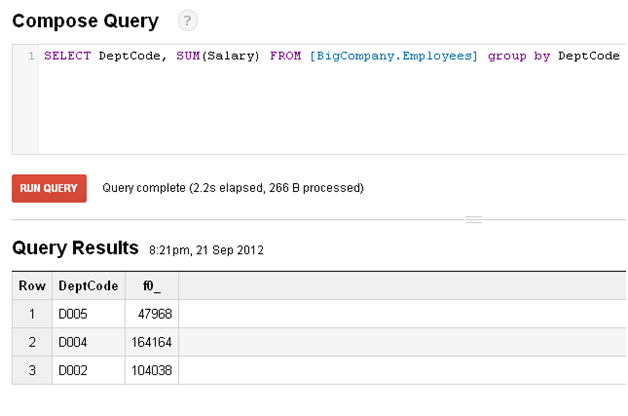
SUM: As its name suggests it returns the sum total of a particular numeric column.

The list of Google Big Query Aggregrate function includes following functions

  • Avg
  • Count
  • Count(Distinct, field,[n])
  • GROUP_CONCAT('str')
  • QUANTILES(expr[, buckets])
  • STDDEV(numeric_expr)
  • VARIANCE(numeric_expr)
  • LAST(field)
  • MAX(field)
  • MIN(field)
  • NTH(n, field)
  • SUM(field)
  • TOP(field, [max_records], [multiplier])


Thursday, September 27, 2012

How to read data from Google BigTables using .NET?

This article is next in series of exploring Google BigQuery and BigTables. In last few posts we learnt what is Google BigQuery and we created some BigTables for demonstration. In this post we will explore how we can read data from Google BigTables using .NET.

Before we jump to .NET, we need to understand some concepts which goes behind the scene towards pulling data from Google BigQuery. We need to know three important details:

- Project ID
- Client Key
- Client Secret

Project ID: When you create your Google account, you get default access to Google API console, a central place to mange access to your Google APIs and billing details. By default, Google creates a project with the name API Project for you. You can create a new project or rename the default project. You need to know Project id, a numeric value of your project or default project( if you are using the default project name). When you create BigTables with Google BigQuery services you create them under this project name. If you do not know the project id of your project, you can visit How to get Project ID of Google Console Projects?

Client Key and Client Secret: When you query data from Google services such as Google Spreadsheet, Google Docs, Picasa etc using your web/ windows application or mobile/ andorid based devices your applications act as client. As a client your identity and authorization need to be known to Google services and, Client key and Client Secret provides this. You need to generate your client key and client secret key using Google API console. This is because Google place limits on API requests and in case you are crossing the free quota limit, Google will charge you as per the uses. You need to visit Google API console to generate your client id and client seceret. When you visit the Google API console for the first time, you see the following screen. You need to click on API Access and go to Create an OAuth 2.0 client ID button to generate your authorization. OAuth is Google Open Authorization. By generation the Google Open Authorization client ID you are allowing user data to be read by clients such as a web page, web service, desktop/mobile applications etc. Next you can click on Generate Key link to generate your client key and client secret.

Once you are set with the three important details, you are all set to start with .NET. You need to download Google Client Library that contains DLLs that you will use in .NET applicaitons. You can download the library from http://code.google.com/p/google-api-dotnet-client/wiki/Downloads#Latest_Stable_Release.

I have following BigTable in Google BigQuery and we will read EmpName from Google BigTable Employee.

Reading data from Google BigTable using .NET is a two step process. In Step 1 we basically sent the user to Google Authorization page. Once the request is authorize, Google geneate an access code which is valid for a limited time. You need to copy this access code to beging with Step 2.

In .NET I have created following interface keeping the two step process in mind.

For Step 1, I have a button Get Authentication. When user click on this button, they are taken to Google Authorization page.

If user click on Allow access, Google generates an access code.

You need to copy this code and paste it to Text box in step 2. When you are done with this, you need to click on button Read Big Table. The code logic written on button 2 will interact with Google BigQuery services and pull data from Google BigTables and data will be shown in Data Grid.

The .NET code logic on this form is following. We need to add references of following Google Data API from the client library that we downloaded before.

using DotNetOpenAuth.OAuth2;
using Google.Apis.Authentication.OAuth2;
using Google.Apis.Authentication.OAuth2.DotNetOpenAuth;

using Google.Apis.Bigquery.v2;
using Google.Apis.Bigquery.v2.Data;

using Google.Apis.Util;
using System.Diagnostics;

namespace BigQuery
{
    public partial class Form1 : Form
    {
        static string clientId = "<ClientID>.apps.googleusercontent.com";
        static string clientSecret = "<ClientSecret>";
        static string projectId = "<ProjectID>";
        static string query = "SELECT EmpName FROM [BigCompany.Employee];";
        static OAuth2Authenticator<NativeApplicationClient> xx;       
        static IAuthorizationState state;
        static NativeApplicationClient myclient;

        public Form1()
        {
            InitializeComponent();
        }

        private void button1_Click(object sender, EventArgs e)
        {
            myclient = new NativeApplicationClient(GoogleAuthenticationServer.Description);
            myclient.ClientIdentifier = clientId;
            myclient.ClientSecret = clientSecret;

            state = new AuthorizationState(new[] { BigqueryService.Scopes.Bigquery.GetStringValue() });
            state.Callback = new Uri(NativeApplicationClient.OutOfBandCallbackUrl);
            Uri authUri = myclient.RequestUserAuthorization(state);

            Process.Start(authUri.ToString());          

        }

        private  IAuthorizationState GetAuthorization(NativeApplicationClient arg)
        {            
            return arg.ProcessUserAuthorization(textBox1.Text, state);
        }

        private void button2_Click(object sender, EventArgs e)
        {
            xx = new OAuth2Authenticator<NativeApplicationClient>(myclient, GetAuthorization);
            
            // Create the Google BigQuery service.
            var service = new BigqueryService(xx);
            JobsResource j = service.Jobs;
            QueryRequest qr = new QueryRequest();
            qr.Query = query;

            QueryResponse response = j.Query(qr, projectId).Fetch();

            //Create a DataTable
            DataTable dt = new DataTable("emp");
            dt.Columns.Add("EmpName");
                    
            foreach (TableRow row in response.Rows)
            {
                foreach (TableRow.FData field in row.F)
                {
                    DataRow DR = dt.NewRow();
                    DR["EmpName"] = field.V;
                    dt.Rows.Add(DR);

                }
                
            }
            dataGridView1.DataSource = dt.DefaultView;
        }

      }
}

After clicking on Read BigTable data from Google BigQuery services was pulled and shown in the data grid.

So this is how we can read data from Google BigTables using .NET.

Reference: http://stackoverflow.com/questions/12443878/google-bigquery-with-net-documentation-samples

Friday, September 21, 2012

How to apply JOINS on Google BigTables with Google BigQuery?

This article is in continuation towards exploring Google BigQuery and Google BigTables. In last few post we learnt what Google BigQuery is and how to create Dataset and BigTables with Google BigQuery. We also learnt how to read data from BigTables. In this post we will learn how we can join two BigTables and read data from both tables.

Google BigQuery service allows to apply Join on BigTables. There are two type of JOIN that Google BigQuery services supports on BigTables.

  • Inner Join
  • Left Outer Join

Google BigQuery also expects that when we are joining two BigTables, one of the BigTable is relatively small in size. A Big Table is considered as small if the data size in the table is less than 7MB. If we try to join two BigTables with data size of more than 7 MB, the Join will fail.

We can apply row filter by using WHERE clause while joining two tables but it only supports AND condition. What it mean is we can apply multiple row filter criteria using AND condition but if we try to apply JOIN and put OR condition in the Where clause the Join will fail.

Let us create an example by joining two BigTables. We have following two CSV files with data of Employees and Departments.

I created two BigTables Employee and Dept by navigating to Google BigQuery webpage https://bigquery.cloud.google.com

The goal is to join these two BigTables and read Employee code, Employee name and Department name. To join these two tables, I have written following query.

SELECT [BigCompany.Employee.EmpCode], [BigCompany.Employee.EmpName], [BigCompany.Dept.DeptName] FROM [BigCompany.Employee] JOIN [BigCompany.Dept] ON [BigCompany.Employee.DeptCode] = [BigCompany.Dept.DeptCode]

I clicked on Run Query and results were expected. The two BigTables were successfully Join and resultset had data from both tables

So this is how we can apply Join on Big Tables.

Friday, September 7, 2012

How to read data from Google BigTables using Google BigQuery?

This post is in continuation towards our learning Google BigQuery. In last few posts we covered What is Google BigQuery and how to create dataset and BigTables. In this post we will learn how we can read data from Google BigTables using Google BigQuery?

With Google BigQuery we can write SQL-like statement to read data from Google BigTables. We can use the SELECT statement just like we use it to read data from SQL or Oracle tables. In last post we created a sample big table Employee_DS_BQ and stored employee data into it. To read this data using Google Browser Tool, we need to navigate to the Google BigQuery page. We need to click on Compose Query button.

To read data from employee table, we need to write query as following:

SELECT empName, empAge, empActive FROM [Employee_DS_BQ.myTable001].

If we want to limit our query resultset to n rows, we can use LIMIT clause. After writing query we need to click on RUN Query.

We can filter our query result set and apply condition using WHERE clause with Google BigQuery. In following example, I wanted to read data of employees where age is less than 25 so I applied WHERE clause in the query.

Google BigQuery provides Aggregrate functions, string functions, Bitwise functions, Comparison functions just like SQL Server or Oracle has provided with their products. We can JOIN two tables and apply Group by and Having clause into it. For Google BigQuery reference you can visit https://developers.google.com/bigquery/docs/query-reference.

Saturday, September 1, 2012

How to create datasets and BigTables into Google BigQuery?

This article is in continuation to the last article What is Google BigQuery.

Once your access to Google BigQuery is enabled and your billing details are setup, you are all set to store data into Google cloud. The data stored in these BigTables can be accessed using three tools that Google has provided.

  1. BigQuery Browser Tools
  2. Bq Command-line tool
  3. REST API

In this post we will examine BigQuery Browser Tool. To start with Browser Tool you need to navigate to Google BigQuery webpage https://bigquery.cloud.google.com/.

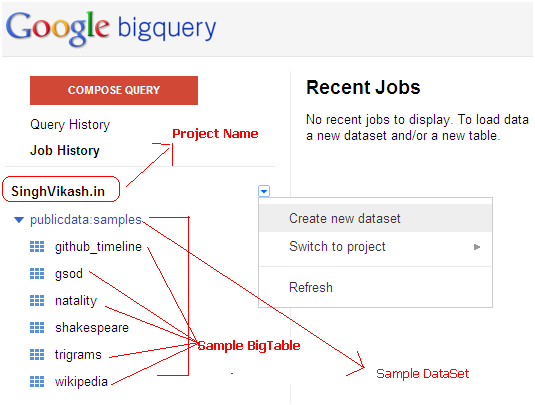
When you login into Google BigQuery, the default screen you see is following. Your projects are listed on the left side of panel. Google provides a sample dataset and few sample BigTables.

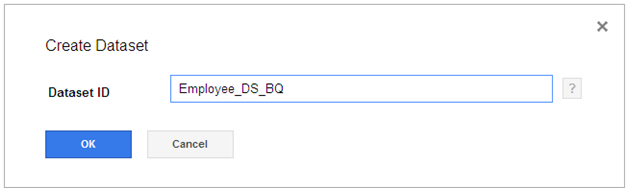
The first step towards creating BigTables is creating a Dataset. Dataset are containers for BigTables. To create Dataset you can click on your project and select Create new dataset. You will find the Create Dataset screen where you have to provide your Dataset a name.

For demonstration purpose, I created a dataset with the name Employee_DS_BQ.

Once I clicked on OK, data set Employee_DS_BQ got created and it got listed on the left side of panel.

Now we have created the dataset, it is time now to create BigTables. To create BigTables we need to click on the + sign next to dataset. This will launch the Create Tables screen.

In the Create Table screen, you have to enter your table name into Table ID field. In Schema field you need to specify your columns names. The columns are specified in the format [column name:datatype]. Google BigQuery currently supports following data types for columns:

- String
- Integer
- Boolean
- Float

You can click on OK button if you want or you can proceed to load data from Create Table screen. For demonstration purpose, I created one table EmpDetails and specified three columns empName, empAge and empActive.

The next thing I am doing is loading data into these tables. I have following data in a CSV file that I need to upload to the BigTable EmpDetails.

I clicked on Choose File button on Create Table screen and selected my CSV file. I clicked on Ok button.

A job was created by the Google BigQuery service and my BigTable was successfully created with the sample data.

So this is how we can create BigTable and load data inside it using Google BigQuery.

In next article we will learn to Query this data

Friday, August 31, 2012

What is Google BigQuery?

Big Data and Cloud – these two words are talk of IT Industry town in last few quarters. All the major players of IT word such as Amazon (AWS), Microsoft (Windows Azure, SQL Azure, Government Cloud and many more) , Google (Google App Engine, Google Compute Engine, Google Cloud Storage and Google BigQuery) etc. are offering cloud based tools and services and there a lot of successful stories and case study on their web sites about their clients who are using these services and tools. The introduction of Google BigQuery in November 2011 has added a power tool in the Google’s list of cloud servicing.

In a very simple term, Google BigQuery is platform to store data into Google cloud and analyze this data by writing SQL-like queries. With Google Big Query, you store the data into large datasets. These datasets contains one or more tables which are referred as BigTables. These BigTables can store billions of row or hundred terabytes of data and you can read these data in seconds. Data stored in these BigTables can be retried by writing SQL-Like queries just like you query SQL, Oracle or any other DBMS/RDBMS.

Among the many advantages that BigQuery offer speed is one of the significant advantages. The large datasets or BigTables data can be retrieved in few seconds from anywhere in the world. BigData is OLAP (Online Analytics Processing system) tool that let your analyze your terabytes of data quickly. BigData is not a Big Data tools such as Hadoop, Netezza, or Vertica but it gives you flexibility to store and analyze your humongous data quickly.

How to start with BigQuery?

To use BigQuery services to store your data into Google cloud and further analyze it, you need to have a Google account. You have to follow the two step process to activate your BigQuery and BigTable access with Google.

  1. You have to enable BigQuery API access into Google API console
  2. You have to enable Billing into Google API console

Google BigQuery services are free, if you are storing and reading your data within the Quota limit that Google have setup. You are charged if you are crossing the free quota limit.

Step 1: Enable BigQuery API into Google API console

Google API console is an online interface provided by Google to mange access, authorization and billing for the Google API uses. When you login into Google API console for the first time, you need to create a project.

By default the project is created with the name “API Project”. You need to go to Services and click on BigQuery API.

Your BigQuery API access will be enabled and on left side of panel BigQuery will be added as a label. BigQuery API will be shown into Active Services with a green ON button.

Step 2: Enable Billing

The second step involves enable billing. It is not that you will be charged every time you use Google Big Query services. It is just to ensure that if are crossing the Quota limit set by Google, you will be charged. To enable Billing, you need to click on Billing. By default Billing is not enabled. You need to click on the button just below Enable Billing.

You need to provide your credit card details. Google wallet accepts all Master card, Visa card, AMEX cards. If you are apprehensive about sharing your credit card details, may be you can try with a pre-paid credit card.

In my case, when I activated billing and created a sample BigTable, I was charged INR 1. This is to part of Google Validation of your credit cards.

Once you are done with the two steps process, your access to BigQuery is established. You can use the BigQuery services by logging into https://bigquery.cloud.google.com/ . You can create BigTables, store data into tables, write queries and play around with them.

That is all for this post. In next post we will see how we can create BigTables and store data into Google BigTables.

Popular Posts

Real Time Web Analytics